
Spain crowned Optimist European Team Racing champions in Campione del Garda
17 October 2026
Sailwave: a practical guide and exercise for regatta scoring
From the entry list to publishing the results: this page provides a guide to using Sailwave, along with sample files for practice.
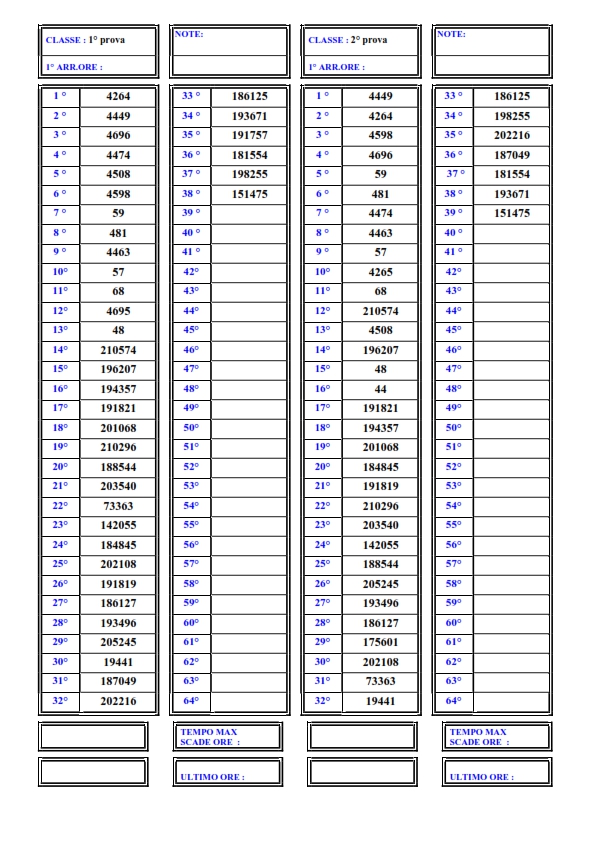
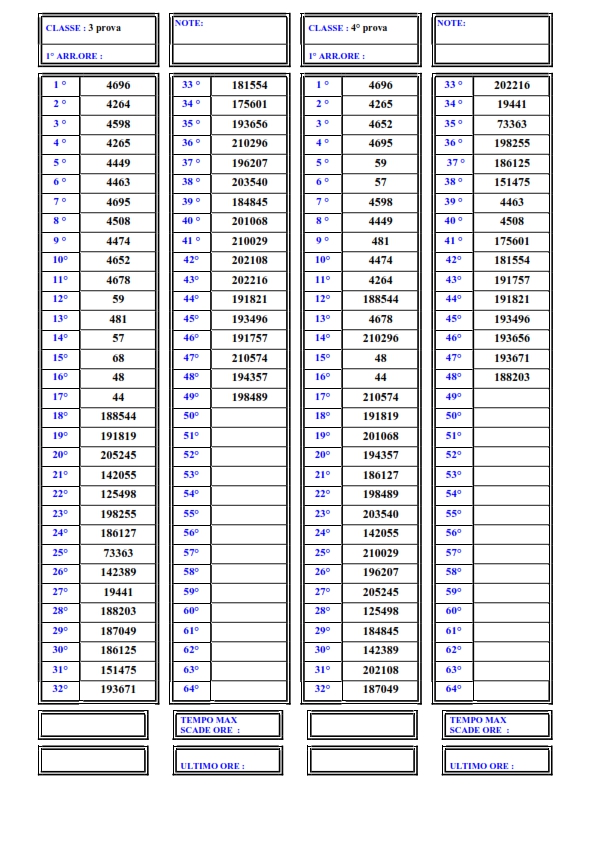
Follow the instructions in the PDF and use the attached materials to create a new series, import competitors, enter finishing orders and check the results.
Note: the Notice of Race relates to an event held in the 2023/24 season and is provided as training material, not as the Notice of Race for a current event.
Open Sailwave and create a new series using the icon in the top-left corner. Set an initial number of competitors and races. You can change these numbers later.
For this exercise, set up four races and give the series an easily identifiable name, such as “Sailwave practice – four races”.
Open the series properties to enter the event header information. The guide also explains how to replace the default logos with the event logos.
Open the scoring system settings (“Sistema di punteggio” in the guide) and configure the series using the attached Notice of Race and the screenshots shown in the guide.
The sample Notice of Race specifies:
As the exercise includes four races, you will be able to check that the first discard is applied at the end. The second discard does not apply in this simulation.
Open the Excel entry list and check the columns containing the class, sail number, names and sailing club.
The procedure described in the guide uses a CSV file with a comma separator. Save a copy of the Excel worksheet in this format, checking which separator is used.
Check the sail numbers particularly carefully: you will use them to identify competitors when entering the finishing orders.
Before entering the results, organise the competitor table. You can change the order of the columns, rename them and choose which ones to display on screen or in print.
Check that sail numbers, classes and names are correctly matched. For the entry list, check that competitors are sorted by sail number; for the results, check that they are sorted by rank.
Use the first sheet for the finishing orders of races 1 and 2, and the second sheet for races 3 and 4.
Sailwave assigns finishing positions sequentially as you enter competitors. If you search using only the last few digits of a sail number, check any multiple matches carefully.
Once you have finished entering the results, use the recalculation command (“Ricalcola” in the guide) to calculate the scores. Then check the finishing order using the function shown next to the pencil icon in the guide and compare it with the race finish sheet.
To correct a result or apply a scoring code, follow the procedure illustrated in the guide by right-clicking the relevant cell. Do not add penalties that are not specified in the exercise.
After the fourth race, also check that the first discard is applied according to the settings required by the Notice of Race.
Before publishing the results, check:
The aim is to complete the entire process, from importing the entry list to preparing the results for publication, checking each step against the source documents.
The attached Notice of Race also provides for corrected-time results. However, the supplied finish sheets contain only positions and sail numbers, not the times needed to calculate those results. The relevant ratings would also be required.
Use these materials to practise entering finishing orders and managing points scoring, keeping this separate from calculating corrected-time results.
arrivi_1_-2_prova_001.jpg [305.4 kB]
iscritti1.xlsx [12.1 kB]
arrivi_3_-4_prova_002.jpg [324.4 kB]
bando_criterium_invernale_2023-24.pdf [1.1 MB]
sailwave1.pdf [3.4 MB]








The ideal place for a holiday on Lake Garda, for nature lovers and for all sports enthusiasts.
